Introduction
Unleash the power of XMonad, the dynamic tiling window manager that will leave your old window manager in the dust. Written in Haskell, XMonad packs a punch in terms of customization options and will transform the way you work. But don't worry, this guide, produced at the expense of blood, sweat, and tears (yes, literally), will make the transition a breeze. So, get ready to laugh in the face of intimidation and take control of your computing experience with XMonad. The time for revolution is now!
Scope of Coverage
| Feature | Status |
|---|---|
| Haskell Language Server Integration with Neovim | Completed |
| The Fundamentals of Modularization | Completed |
| Multi-Monitor and Hot-Plugging Support | Completed |
| Polybar as Your Statusbar | Completed |
| Hyper Key Support | Completed |
| ResizableTile (Tall and Resizable, and Possible Grid Replacement) | Completed |
| Per-Screen (Different Layouts for Varied Screen Dimensions) | Completed |
| Sub-Layouts (Custom Tabs) & Window Navigation | Completed |
| CycleWS (Cycling Through Workspaces and Screens) | Completed |
| EasyMotion (Focus and Kill Any Visible Window) | Completed |
| Rescreen (Monitor Hot-Plugging) | Completed |
| WindowSwallowing (Hide Terminal Instance Which Launches GUI) | Completed |
| Java Hack (Better Support for Java Apps) | Completed |
| Windowed Fullscreen (Chromium Support) | Completed |
| EwmhDesktops (Communicate with Polybar) | Completed |
| NamedScratchpads (Quick Commands, Glava, etc.) | Completed |
| ShowWMName (Display Workspace Name When Switching Workspaces) | Completed |
| Custom Prompts (Man Pages, Search Engines, etc.) | Completed |
| Spacing/Gaps on the Fly | Completed |
| Managehelpers (Center Float, Shift to Workspace, etc.) | Completed |
| Sane Keybindings with mkKeymap (Emacs-Style) | Completed |
| Catppuccin Color Scheme | Completed |
| Better Borders (Single Open Window, Fullscreen, etc.) | Completed |
| Flexible Mouse Resize | Completed |
| Topic Spaces | Upcoming |
| Theme Switching | Upcoming |
| Support for NixOS | Future |
Preparatory Requirements
The following guide requires the latest/git version of XMonad to be installed to avert recompilation errors from missing dependencies. For compatibility with the stable version (>= 0.17), consider removing disableEwmhManageDesktopViewport in xmonad.hs, which is unavailable in said version at the time of writing.
IMPORTANT: Please manually install the
additional fonts and run
autorandr --save single for polybar-based modules
to appear. The latter is mandatory since polybar launch is
integrated with hotplugging support.
Automatic Installation (Arch Linux)
This setup script is offered as a convenience, but its use is at your own discretion (unstable). Manual installation is recommended for a safer and more controlled process, as it eliminates the risk of accidental overwrites or incongruous symlinks. As the author, I suggest manual installations to better respect the user's file structure. Please review before use.
                                    cd ~

                                    wget https://raw.githubusercontent.com/NeshHari/XMonad/main/setup.sh bash

                                    setup.sh
Dependencies for Manual Installation
Note: Paru is interchangeable with any AUR helper
paru -Syu alacritty autorandr bat beautyline
                                    catppuccin-cursors-mocha catppuccin-gtk-theme-mocha cava dunst eww-git fd feh
                                    fish fzf ghc ghcup-hs-bin git glava haskell-utf8-string haskell-x11 jgmenu kitty
                                    lazygit libnotify lxappearance neovim nodejs npm polybar picom-pijulius-git
                                    playerctl python-pip rofi stack starship stow ttf-fira-code ttf-font-awesome
                                    ttf-jetbrains-mono-nerd unclutter wmctrl xcape xdo xorg-xinit xorg-xmessage
                                    xorg-xmodmap xorg-xsetroot zoxide
Note: Polybar will not automatically launch after installation. This is expected behavior. The polybar launch script is deliberately tied to autorandr, which is used for hot-plugging. Refer to the section on MyRescreen.hs to see how they all come together.
Additional Fonts
- Vanilla Caramel
- Cream Cake
- Sugar Snow
- Purple Smile -- Optional
Note: Downloaded fonts should be placed in ~/.local/share/fonts, before running fc-cache -f -v to update the font cache.
TUI/CLI Steps
Note: Avoid using "stow *" unless on a fresh install. By default, measures are in place so that you do not accidentally overwrite existing configurations. I suggest manually copying configurations to the pertinent directory, or selectively stowing certain directories (e.g. stow fish) whilst in the root of the cloned folder.
                                    git clone https://github.com/NeshHari/XMonad.git

                                    mv XMonad starter_kit_dots

                                    rm -r xmonad xmonad-contrib

                                    git clone https://github.com/xmonad/xmonad.git

                                    git clone https://github.com/xmonad/xmonad-contrib.git

                                    stack init

                                    stack install

                                    sudo ln -s ~/.local/bin/xmonad /usr/bin

                                    xmonad --recompile && xmonad --restart
Wallpaper
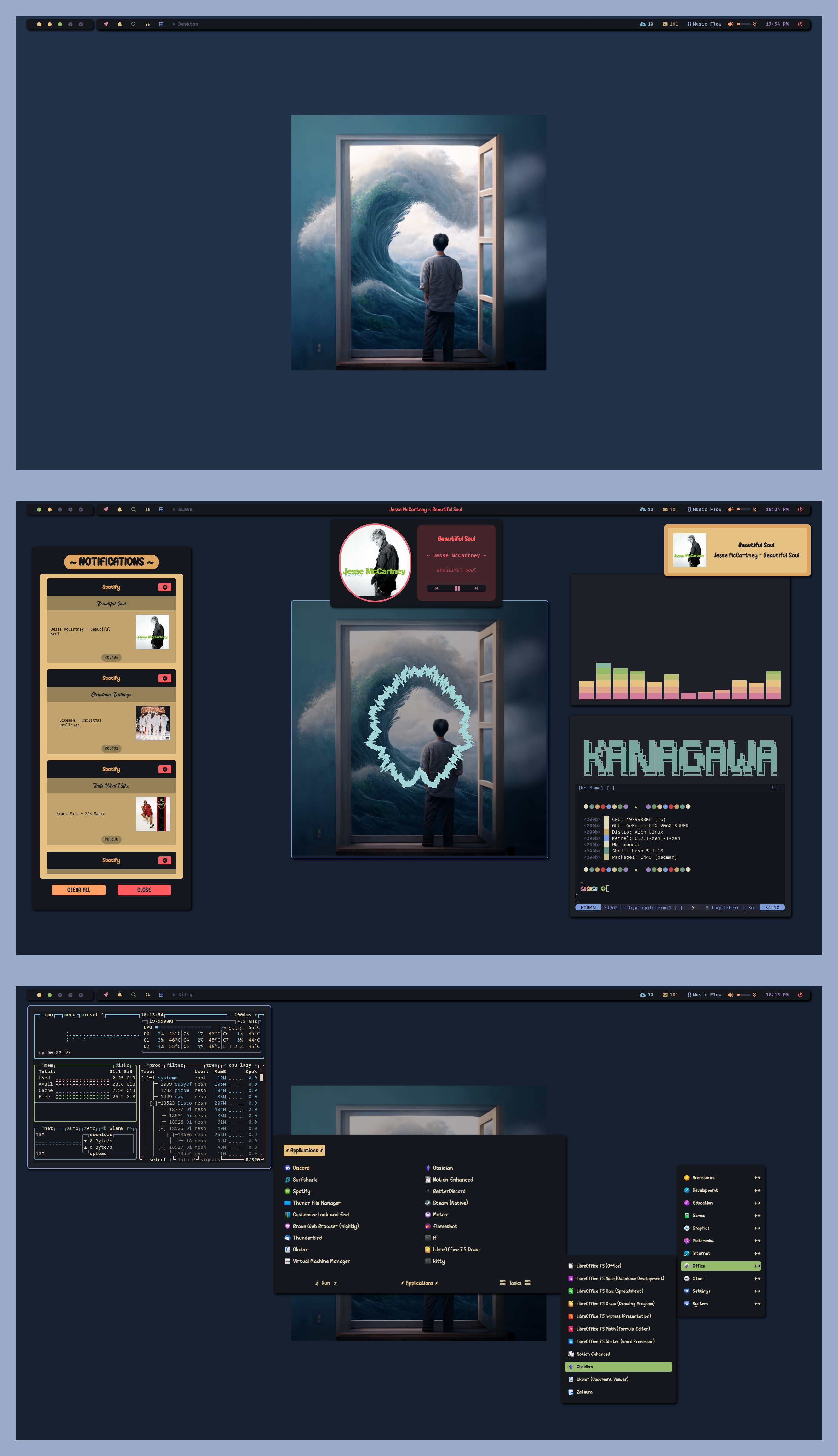
Current: Out The Window ~ Custom (multi-filtered)
Other 1: Pots ~ Custom (multi-filtered)
Other 2: Dark Arts ~ Custom (multi-filtered)
You may change the path to your wallpaper in ~/.config/xmonad/lib/Custom/MyStartupApps.hs
Cursor
You may optionally install a custom cursor theme. I alternate between Oreo, which provides a handful of catppuccin-like colors with a little more contrast, and Catppuccin Mocha Dark Cursors. Once installed, the new cursor can be set with lxappearance.
Spotify
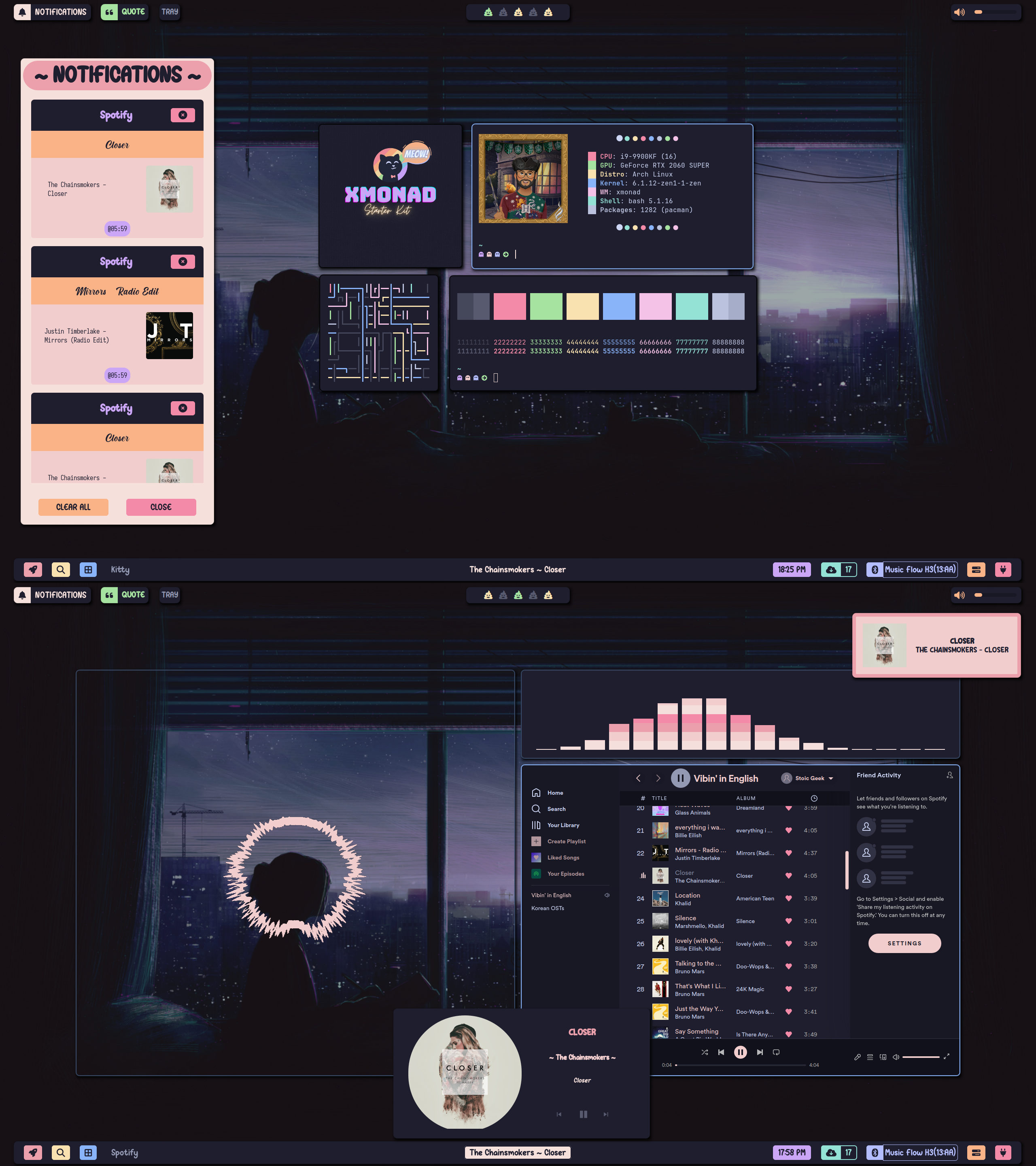
You may use the official package or Flatpak to get spotify.
                                    flatpak install flathub com.spotify.Client

                                    flatpak run com.spotify.Client
To integrate with polybar and avoid the traceback error, you may need to run the following command:
pip install dbus-python
Additionally for non-eww based configurations, to ensure polybar (main-middle) launches only when spotify is used and closes when it is not, please modify the desktop entry:
#PATH:~/.local/share/applications/spotify.desktop

                                    (copy and modify /usr/share/applications/spotify.desktop so it persist after
                                    updates)


                                    [Desktop Entry]

                                    Type=Application

                                    Name=Spotify

                                    ...

                                    Exec=/home/myusername/.config/polybar/scripts/poly_spoti.sh

                                    ...
Note: Configurations using Spicetify are available here and here but require manual configuration on your end. Refer to the official docs for more information.
GTK
For GTK applications, open lxappearance and select the Catppuccin theme of choice. In the Widget section, set the default font to Sugar Snow/Purple Smile. In the Icon Theme section, select BeautyLine.
Discord
Install BetterDiscord
and inject this code into CSS
                                        @import
                                        url("https://catppuccin.github.io/discord/dist/catppuccin-mocha-lavender.theme.css");
Neovim
Launch Neovim and let it do its thing :) Watch out for those LSP/Treesitter prompts, and install what you need automatically.
Pacman Command Aliases
Fish aliases such as "pacsi" and "parusi" help you fuzzy find official and AUR packages respectively with a preview panel consisting of all necessary information, right in your terminal. You can multi select or toggle select packages my marking or unmarking them using Tab. Likewise, you can remove existing packages in your system using "pacrem". Lastly, "pacupd" runs 'sudo pacman -Syu'.
Compilation Advice and Troubleshooting
Note: xorg-xmessage must be installed to view compilation errors
In xmonad, there are several common recompilation errors that can occur while building a configuration. Some of these errors include:
- Mutual recursion with imported modules - When two or more functions are defined in terms of each other, creating an infinite loop, and the functions are defined in different imported modules. To fix this, you will need to ensure that the mutual recursion is not happening by importing the modules in a different order or by changing the function calls to not cause recursion.
- Ambiguity Occurrences - An ambiguity error in xmonad can occur when
multiple functions with the same name are imported from different modules. To fix
this, you can use a qualified import or use an import abbreviation (import module
as abbreviation) to specify which function to use.
For example, if you want to use the function foo from both module A and B in your xmonad configuration, you can import them like this:import A (foo)
import B (foo) as fooB
Then, when you use the function foo in your code, it will refer to the one imported from module A, and you can use fooB to refer to the one from module B.
Alternatively, you can use a qualified import to specify which function to use like this:import qualified A
import qualified B
Then, when you use the function foo in your code, you will have to specify from which module you want to use it, like A.foo or B.foo. By doing this, you can avoid the ambiguity error, the compiler will understand which function you want to use. - Unresolved symbols - When the compiler is unable to find the definition of a symbol that is referenced in the code. To fix this, you will need to import the necessary modules or define the symbol.
- Type error - When the type of a variable or expression does not match what is expected by the function or operation. To fix this, you will need to ensure that the types of the variables and expressions are consistent with what is expected.
- Syntax error - When the code does not conform to the Haskell syntax. To fix this, you will need to check for missing or extra characters, or any other syntax issues.
- Missing type signatures/incomplete type annotations- When the type signature of a function or variable is missing or not specified, the compiler may not have enough information to understand the expected behavior of the function or variable. This can lead to potential type errors during compilation. To avoid this, it's important to ensure that all functions and variables have their type signature specified. This way, the compiler can understand the inputs and outputs of the function or variable, and how it should behave. Although it's possible to suppress this warning by using the -Wno-missing-signatures flag when compiling the code, it's not recommended as it can lead to potential type errors in the future. For best practices, it's always recommended to include the type signature for functions and variables.
-- to ignore, prepend this at the top of the file
--{-# OPTIONS_GHC
                                    -Wno-missing-signatures #-}

                                    -- to address, explicitly define the type for myVar (e.g. String)

                                    myVar :: String
Haskell Cheat Sheet
Here's a pretty good cheat sheet to familiarise yourself with Haskell if you come from any other programming language.
Difference between $ and . operators
In Haskell, both the $ operator and the dot (.) operator are used to control the order of function application. However, they have different functionality. The $ operator is used to apply a function to an argument without the need for parentheses. This operator has the lowest precedence of any operator in Haskell and is often used to make code more readable by allowing the argument to be placed at the end of a chain of function calls. For example, f(g(x)) can be rewritten as f $ g x. On the other hand, the dot operator (.) is used to compose two functions together. This creates a new function that applies the right-hand function to the result of the left-hand function. An example of this
Neovim Integration with Haskell Language Server (HLS)
Managing LSP servers in Neovim can be made easier by using the Mason plugin. A simpler option would be to install LSP Zero.
                                { 'VonHeikemen/lsp-zero.nvim',

                                dependencies = {

                                    { 'neovim/nvim-lspconfig' },

                                    { 'williamboman/mason.nvim' },

                                    { 'williamboman/mason-lspconfig.nvim' },

                                    { 'hrsh7th/nvim-cmp' },

                                    { 'hrsh7th/cmp-buffer' },

                                    { 'hrsh7th/cmp-path' },

                                    { 'saadparwaiz1/cmp_luasnip' },

                                    { 'hrsh7th/cmp-nvim-lsp' },

                                    { 'hrsh7th/cmp-nvim-lua' },

                                    { 'L3MON4D3/LuaSnip' },

                                    { 'rafamadriz/friendly-snippets' },

                                }}
Note: My lsp.lua file contains configuration information post-installation.
In order to ensure optimal compatibility between the Haskell Language Server (HLS) and Neovim, it is recommended to set up XMonad using the package manager stack or cabal. Installing HLS via Pacman or AUR may result in errors, such as "could not find module" or "unknown package" on import of modules, even if HLS is successfully attached and running on the Neovim buffer.
HLS offers a range of features including diagnostics, completions, code actions, and formatting. To avoid potential errors, I suggest installing HLS via "ghcup install hls," so that Mason can detect the executable when running ":MasonInstall haskell-language-server" in Neovim. A complete list of HLS features can be found at the website here.
Personally, my formatter of choice is Ormolu due to its readability and consistency. It is also the default formatter for HLS. You may want to include a key mapping and/or autocommand for formatting in Neovim.
                                -- autocommand

                                vim.cmd [[autocmd BufWritePre * lua vim.lsp.buf.format({async = false})]]

                                -- manual format in normal mode (assuming vim.g.mapleader is set)

                                vim.keymap.set("n", "<leader>fo", vim.lsp.buf.format)
You may also include other formatters (e.g., fourmolu, brittany) by first installing
them with Mason, and integrating them with null-ls as shown
here.Moving on, a minimal hie.yaml must be defined for HLS to function.
                                cradle:

                                stack:
Expected High-Level Structure
                                .

                                ├── hie.yaml

                                ├── lib/

                                ├── stack.yaml

                                ├── stack.yaml.lock

                                ├── xmonad

                                ├── xmonad-contrib

                                └── xmonad.hs

                                br>
If XMonad was installed via stack, symlink or add the xmonad executable to PATH to make
"xmonad --recompile/--restart" usable.
sudo ln -s ~/.local/bin/xmonad /usr/bin
Modular Design
I utilize a modular structure to enhance accessibility, manageability, and testability in comparison to monolithic code. This method consists of dividing/breaking the code into smaller, independent modules that can be integrated as needed. In XMonad, these modules are typically imported from a folder named "lib", which is located in the same directory as the xmonad.hs file. If the folder does not already exist, it can be created. Users can create individual modules by creating files with the .hs extension within the lib folder or any of its subfolders (e.g. ./lib/Custom). These modules can then be imported directly into xmonad.hs or indirectly through other modules for use.
Fundamental Principles
General Path: ./lib/Custom/MyModule.hs, where "." is relative to where xmonad.hs resides, and MyModule is replaceable by the name of the module. As a rule of thumb, ensure both file name (MyModuleName.hs) and module name (Custom.MyModuleName) are the same.
lib/Custom/MyModule.hs
-- define the module at the top of the file
module Custom.MyModule where
--
                                other imports
-- code...
xmonad.hs
-- import the custom module
import Custom.MyModule
-- code...
xmonad/lib/Custom
> exa --tree
.
├── MyCatppuccin.hs
├──
MyDecorations.hs
├── MyKeys.hs
├── MyLayouts.hs
├── MyMacAddresses.hs
(hidden)
├── MyManagement.hs
├── MyManagementPositioning.hs
├──
MyMouse.hs
├── MyPolybar.hs
├── MyScratchpads.hs
├── MyScreen.hs
├──
MyStartupApps.hs
└── MyWorkspaces.hs
Note: Ensure no mutually recursive modules exist, or XMonad will not compile. These are modules that import each other. For example, if you import Custom.MyScratchpads in MyManagement.hs, do not import Custom.MyManagement.hs in Custom.MyScratchpads. If the need arises, you can bypass this by extracting part of the module into an even simpler module, as seen in MyManagementPositioning.hs.
In order to improve recognition and simplify the use of the Catppuccin Mocha palette, the MyCatppuccin.hs file should define color variables for each color in the palette. Doing this prevents the need to memorise hex representations for each color. To prevent ambiguity when used in conjunction with other color schemes with the same variable name, it is recommended to prepend the color variables with something unique to that color scheme, such as "cat". For example, "catBlue" and "nordBlue" are different, but using just "blue" creates ambiguity errors. Refer to the "Compilation Advice and Troubleshooting" subsection for other methods to prevent ambiguous occurrences.
                                module Custom.MyCatppuccin where


                                catRosewater, catFlamingo, catPink, catMauve, catRed, catMaroon, catPeach, catYellow,
                                catGreen, catTeal, catSky, catSapphire, catBlue, catLavender, catText, catSubtext1,
                                catSubtext0, catOverlay2, catOverlay1, catOverlay0, catSurface2, catSurface1,
                                catSurface0, catBase, catMantle, catCrust :: String

                                catRosewater = "#f5e0dc"

                                catFlamingo = "#f2cdcd"

                                catPink = "#f5c2e7"

                                catMauve = "#cba6f7"

                                catRed = "#f38ba8"

                                catMaroon = "#eba0ac"

                                catPeach = "#fab387"

                                catYellow = "#f9e2af"

                                catGreen = "#a6e3a1"

                                catTeal = "#94e2d5"

                                catSky = "#89dceb"

                                catSapphire = "#74c7ec"

                                catBlue = "#89b4fa"

                                catLavender = "#b4befe"

                                catText = "#cdd6f4"

                                catSubtext1 = "#bac2de"

                                catSubtext0 = "#a6adc8"

                                catOverlay2 = "#9399b2"

                                catOverlay1 = "#7f849c"

                                catOverlay0 = "#6c7086"

                                catSurface2 = "#585b70"

                                catSurface1 = "#45475a"

                                catSurface0 = "#313244"

                                catBase = "#1e1e2e"

                                catMantle = "#181825"

                                catCrust = "#11111b"
MyStartupApps.hs
The main difference between the spawn and spawnOnce functions in XMonad is that spawn will start the specified command every time it is called, while spawnOnce will start the specified command only the first time it is called, and subsequent calls will have no effect. Despite traditional use cases where the wallpaper is set only once, some users might choose to set it every time xmonad is restarted so as to better support monitor hot-plugging. This ensures that the wallpaper will be set correctly even if a new monitor is plugged in or if the resolution of the monitor changes. This assumes the user utilises something like "feh bg-scale" in order to scale the wallpaper accordingly.
                                module Custom.MyStartupApps where


                                import XMonad

                                import XMonad.Util.SpawnOnce


                                myStartupHook :: X ()

                                myStartupHook = do

                                spawn "feh --bg-scale ~/wallpapers/dark_arts_custom.png"

                                spawn "~/scripts/feh-blur.sh -s; ~/scripts/feh-blur.sh -d"

                                spawn "killall picom; picom -b"

                                spawnOnce "easyeffects --gapplication-service &"
MyScreen.hs
Hot plugging is a crucial feature for any multi-monitor workflow as it allows users to seamlessly add or remove monitors without disrupting their workflow. XMonad provides a custom hook that is best used in conjunction with other tools such as autorandr, which automatically selects a predefined configuration dependent on the number of connected displays. It works by listening for RandR events and performing a defined action such as restarting xmonad when the number of screens changes. Together they provide a robust solution for monitor hot-plugging.
Autorandr
Required package: autorandr
Firstly, ensure autorandr detects all possible monitor combinations. In this example, I shall provide single and dual monitor setups. This assumes the layouts (i.e., portrait/landscape & positioning) are already set up.
With only one display on, run the following command:
autorandr --save singleNote: There may be cases, particularly on boot, where the second monitor is turned off (i.e., black screen) but connected to a power supply and display port. In cases where xrandr does not correctly detect the screen resolution, you may want to force the second monitor to be off before saving the "single" profile. In my setup, DP-1 is the second monitor I want off, whilst the specified resolution is for the monitor I wish to utilise.
xrandr --fb 2560x1440 --output DP-1 --off

                                autorandr --save single --force
With both displays on, run the following command:
autorandr --save dualUse the following command to ensure the correct layout is detected:
autorandr --detectedAdapt this concept to whatever configuration you have. To debug, run the following:
autorandr --debug --dry-run -cf
Rescreen Hook
Once autorandr is good to go, add the self-explanatory Rescreen hooks below. If you get kicked to TTY (i.e., Xorg crashed), increase the sleep duration before restarting xmonad. My purpose for "restarting" is to recall the StartupHook in Custom.MyStartupApps, and spawn polybar and feh accordingly on the detected monitor. This is critical when switching from smaller to more extensive displays (e.g., single -> dual monitor).
module Custom.MyScreen where

import XMonad
import
                                XMonad.Hooks.Rescreen

myAfterRescreenHook :: X ()
myAfterRescreenHook =
                                spawn "sleep 1; xmonad --restart"

myRandrChangeHook :: X
                                ()
myRandrChangeHook = spawn "autorandr --change"

rescreenCfg ::
                                RescreenConfig
rescreenCfg =
 def
 { afterRescreenHook =
                                myAfterRescreenHook,
 randrChangeHook = myRandrChangeHook
 }
Workspaces are a powerful feature that allow users to organize and manage their open applications in a highly customizable way. The names of these workspaces can be chosen according to personal preference. Utilizing XMonad.Layout.ShowWName via the layout hook will display the assigned names on the screen when switching workspaces. It is important to note that the names assigned to workspaces must also be reflected in the Polybar configuration, particularly if icons are utilized. The XMonad.Layout.ShowWName package provides additional functionality and customization options which are covered in the Custom.MyDecorations module.
module Custom.MyWorkspaces where
myWorkspaces :: [String]

                                myWorkspaces = ["one", "two", "three", "four", "five"]
Snippet of EWMH module in Polybar's config.ini:
icon-0 = one;<icon-for-ws-1>

                                icon-1 = two;<icon-for-ws-2>

                                icon-2 = three;<icon-for-ws-3>

                                icon-3 = four;<icon-for-ws-4>

                                icon-4 = five;<icon-for-ws-5>
Click here for an example Polybar configuration.